Generate proxy credentials and lists
The Generate panel on the Residential Proxy page (and on Mobile Proxy) builds a ready-to-paste list: how many lines, where, rotating or sticky, and the list appears on the right in the format your tool wants. Generating is free; you only pay for the traffic you send.
Written By Carmine Cella
Last updated 1 day ago
The Generate panel on the Residential Proxy page (and on Mobile Proxy) builds a ready-to-paste list: how many lines, where, rotating or sticky, and the list appears on the right in the format your tool wants. Generating is free; you only pay for the traffic you send.
Before you start
A residential or mobile plan with traffic on it: Data left at the top of the page is above zero. Each plan has one password, written into every line; the username carries the targeting.
Steps
- Open Residential Proxy in the left menu.
- Set the Quantity of lines (for example 10, each with its own session).
- Pick a Location: Anywhere, a continent such as Europe, or one or more countries. With a continent, each line gets a different country from it.
- Choose the Type: Rotating (a new IP on every request) or Sticky (each line keeps its IP for the Session time, in minutes).
- Leave Proxy pool on Standard unless you were given another pool.
- Open Advanced settings for Region, City, Session time, Operating system and ASN (carrier). Regions and cities narrow the countries you picked by name; continents stay as they are.
- Click Generate. The lines appear under Your proxies.
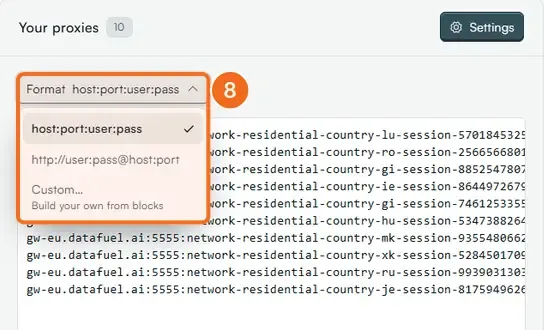
- Pick the Format:
host:port:user:pass,http://user:pass@host:port, or Custom to build your own from blocks. Click Copy or Download.
A generated line looks like this (sticky, 60-minute session):
gw-eu.datafuel.ai:5555:network-residential-country-us-region-california-city-losangeles-session-8f2a91-ttl-60:YOUR_PASSWORD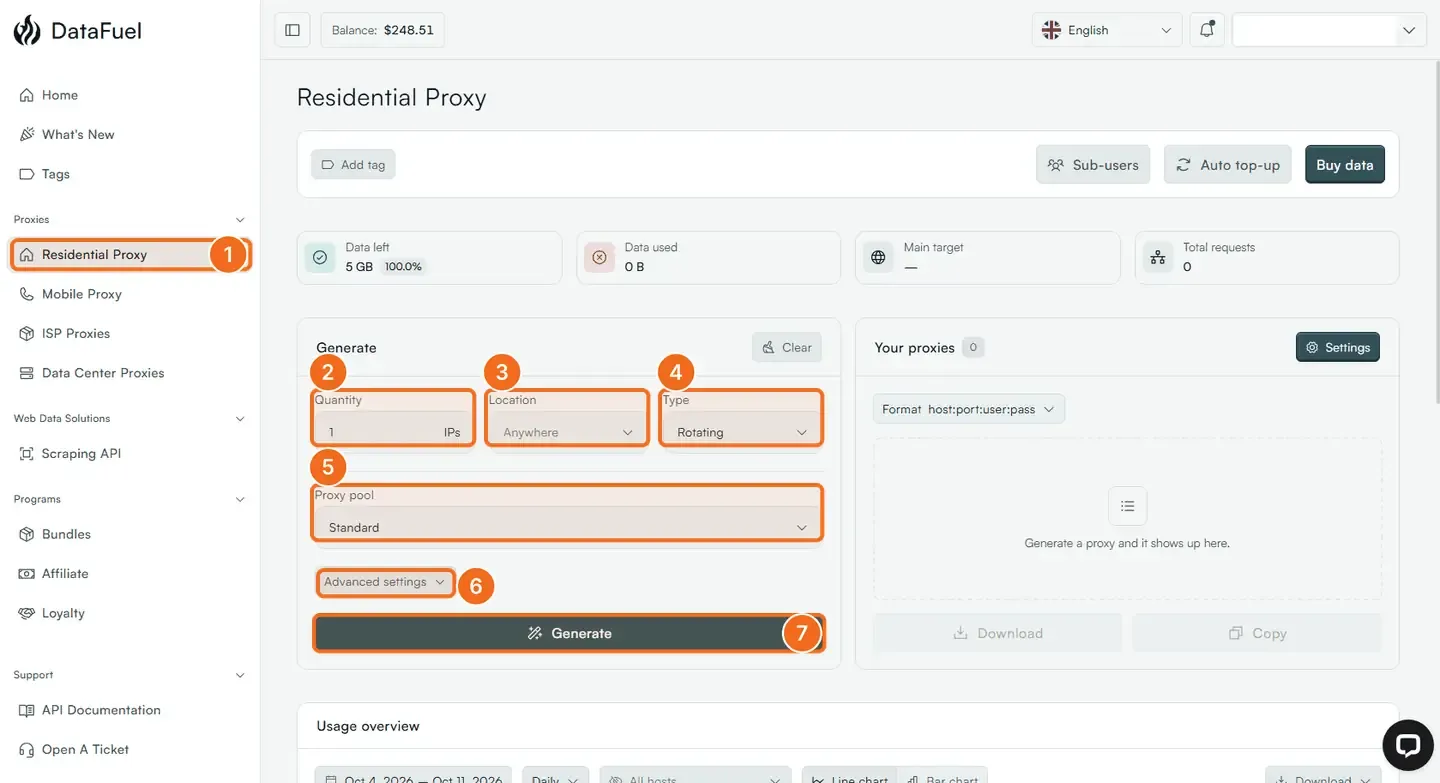
Settings on the plan
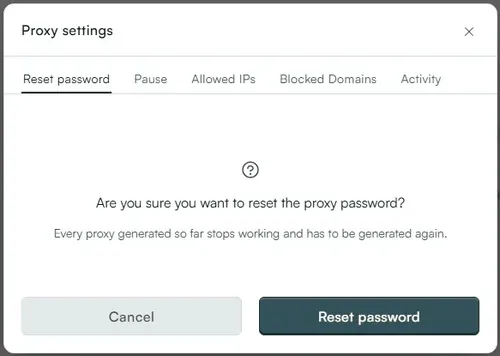
Settings, above the list, opens the plan's Proxy settings:
- Reset password: issues a new password. Every proxy generated so far stops working and has to be generated again; do it if the password leaked, and update your tools straight after.
- Pause: stops the plan from serving traffic until you resume it.
- Allowed IPs: an IP whitelist, so the addresses you list can connect without a password.
- Blocked Domains: domains the plan refuses, so a script cannot spend traffic on them.
- Activity: recent requests on the plan.
Sub-users creates separate credentials for a team or a client on the same plan; Add tag labels the plan for your own filtering; Buy data adds traffic; Auto top-up refills it automatically.
From your own code
The User API does the same: generateProxies on the plan returns the list, getCredentials the base credentials, resetCredentials a new password, listLocations the region and city codes. See the technical reference below.
If it did not work
- A city gives no IP. Coverage depends on the pool; widen to the region or the country.
- The tool rejects the line. Switch the Format to
http://user:pass@host:port, or build the order it wants with Custom. - 407 on every line. The password was reset, or the lines were generated on another plan (mobile credentials do not work on a residential line and the other way round). Generate again.
Related
Was this helpful?
Still need help? Ask the team