Add your VAT number and company details to invoices
Fill in Settings → Personal → Billing Details once, before your next payment; every invoice from then on carries your company name, address and VAT number, and VAT is calculated for your country and status.
Written By Carmine Cella
Last updated 1 day ago
Fill in Settings → Personal → Billing Details once, before your next payment; every invoice from then on carries your company name, address and VAT number, and VAT is calculated for your country and status.
Steps
- Open Settings from the account menu at the top right. The Personal tab opens with your Billing Details.
- Click Add Billing Details, or the edit icon on the profile marked Primary.
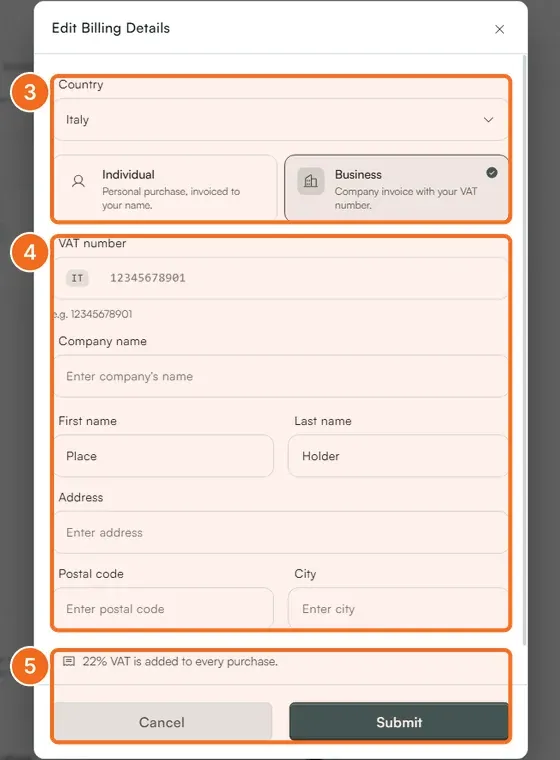
- In Edit Billing Details, choose the Country, then Business ("Company invoice with your VAT number") rather than Individual.
- Enter the VAT number without the country prefix (the prefix is shown in front of the field, for example
IT), the Company name, First name and Last name, Address, Postal code and City. - Read the note under the form, which states the VAT that will apply, and click Submit. The next payment uses these details.
How VAT is applied
- Italian customers: 22% Italian VAT is added to every purchase.
- EU businesses with a valid VAT number: no VAT is charged; the invoice carries the reverse-charge note and both VAT numbers.
- EU consumers and EU businesses without a valid VAT number: VAT at the rate of your country.
- Outside the EU: no Italian VAT; local taxes, if any, are your responsibility.
Tax rules change and depend on your exact status; your accountant has the final word.
If it did not work
- "VAT number not valid." The number is not active in the EU register, or you typed the prefix into the field. Check it on the European Commission's VIES site and try again; a number registered this week can take a few days to appear.
- An invoice was already issued without the details. Write to support@datafuel.ai with the payment reference; we reissue it with the details on file.
Related
Was this helpful?
Still need help? Ask the team