Connect Datafuel to Claude, ChatGPT or Cursor with MCP
The scraping API is also an MCP server, so an AI assistant can fetch any page, search Google or crawl a site through Datafuel without you writing code. Scraping API → Settings shows the configuration block ready to paste; you only add your key.
Written By Carmine Cella
Last updated 1 day ago
The scraping API is also an MCP server, so an AI assistant can fetch any page, search Google or crawl a site through Datafuel without you writing code. Scraping API → Settings shows the configuration block ready to paste; you only add your key.
Before you start
- Your scraping key (
df_key_…) from Scraping API → Settings. The assistant spends your credits with it; rotate the key if you ever share a configuration by mistake. - The server address:
https://scraping-api.datafuel.ai/mcp.
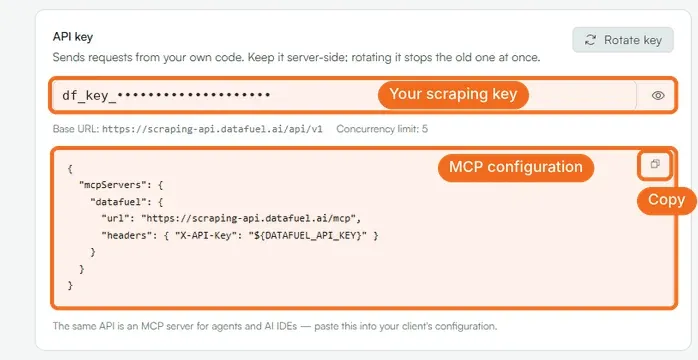
Cursor and other MCP clients
Copy the block from Scraping API → Settings (the copy icon at its top right) into .cursor/mcp.json in your project, or the global file from Settings → MCP in Cursor, and replace ${DATAFUEL_API_KEY} with your key or export it as an environment variable:
{
  "mcpServers": {
    "datafuel": {
      "url": "https://scraping-api.datafuel.ai/mcp",
      "headers": { "X-API-Key": "${DATAFUEL_API_KEY}" }
    }
  }
}
Claude
Claude Code (terminal):
claude mcp add --transport http datafuel https://scraping-api.datafuel.ai/mcp --header "X-API-Key: df_key_YOUR_KEY"Claude app and claude.ai: open Settings → Connectors, click Add custom connector, paste the server address and click Add. Claude sends you to Datafuel to sign in and approve access; no key is typed. Custom connectors are available on paid plans. Then start a chat and ask: "Fetch https://example.com/pricing with Datafuel and summarise it."
ChatGPT
ChatGPT connects to remote MCP servers through Settings → Connectors (developer mode). Add the server address there and authorise it; the exact steps follow OpenAI's current connector flow.
What the assistant can do once connected
Fetch a page past anti-bot protection and return it as Markdown; search Google and get the results as JSON; map and crawl a site; ask what AI engines answer about a topic. The tools describe themselves to the assistant; a skill file at /skill.md and llms.txt give it the context.
If it did not work
- The assistant says the server is unreachable. Check the address and that the key replaced the placeholder; a
401in the client log means the key is wrong or was rotated. - It works but spends more than expected. Each fetch is a task on the network you ask for; tell the assistant to use the Basic network unless a page is protected. History on the Scraping API page shows every run.
Related
Was this helpful?
Still need help? Ask the team