Add funds and set up auto top-up
Your account has one balance, shown in the top bar. You fill it under Settings → Deposits with a card; purchases and renewals are then taken from it. Auto top-up keeps a proxy plan or your API credits from running dry in the middle of a job; it is off until you switch it on.
Written By Carmine Cella
Last updated 1 day ago
Your account has one balance, shown in the top bar. You fill it under Settings → Deposits with a card; purchases and renewals are then taken from it. Auto top-up keeps a proxy plan or your API credits from running dry in the middle of a job; it is off until you switch it on.
Before you start
- A card. Card payments carry a 3.5% processing fee, shown before you confirm. Crypto appears as a second method and is marked unavailable while it is switched off.
- Your Billing Details filled in under Settings → Personal if you want the company name and VAT number on the invoice.
Add funds
- Open Settings from the account menu at the top right, then Deposits.
- Enter the Amount: between $10.00 and $5,000.00.
- Choose Card, enter the card holder, number, expiry and security code; tick Default Payment Method to reuse the card.
- Check the Processing fee and Total charged lines, tick I agree to waive my right of withdrawal (the balance is usable at once), and confirm.
- The balance in the top bar updates and the payment appears under Settings → Invoices.
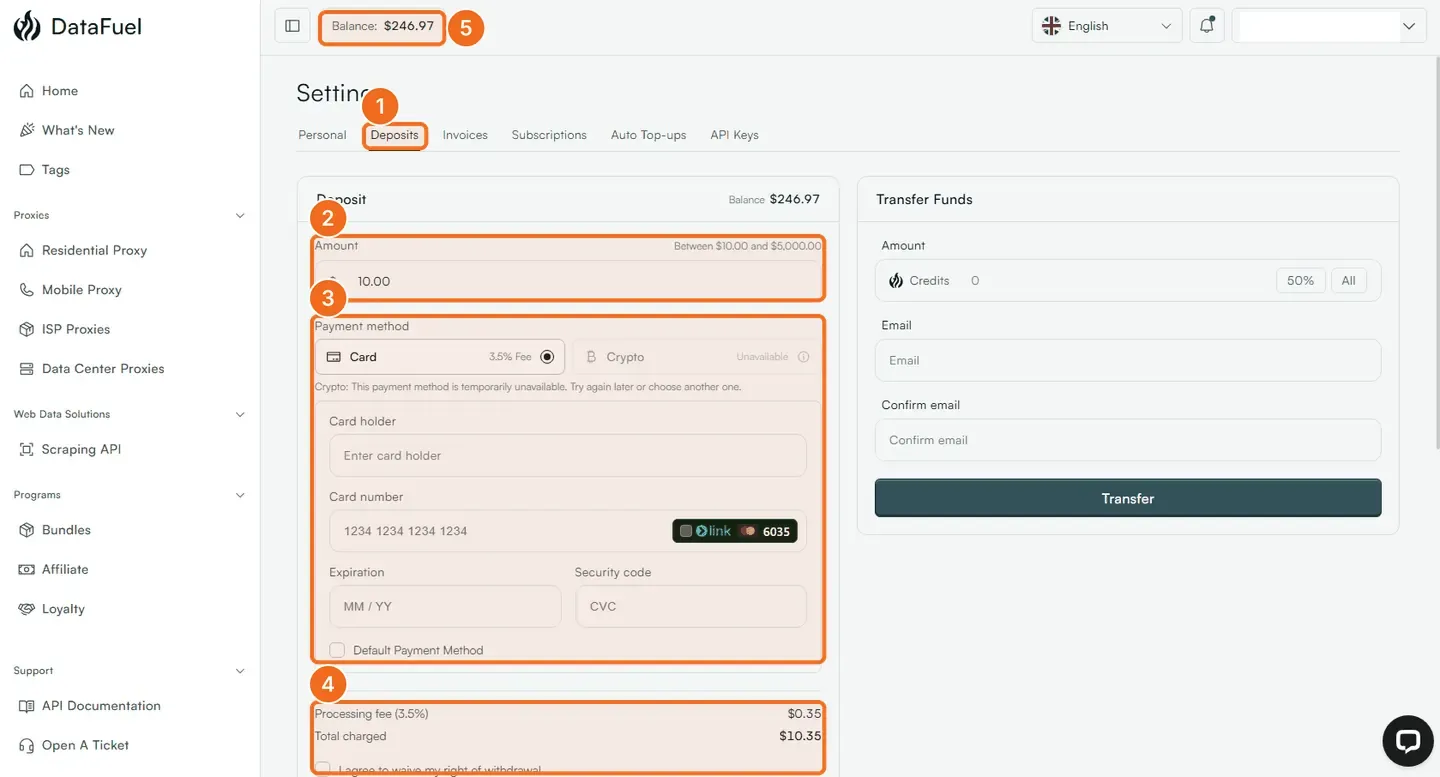
Transfer Funds, on the same page, sends part of your balance to another Datafuel account: enter the amount (or 50% / All), the recipient's email twice, and click Transfer.
Set up auto top-up for a proxy plan
- Open the plan page, for example Residential Proxy, and click Auto top-up.
- Set Top up below (the traffic left that triggers it, in GB) and Buys (how much to add, in GB). Payment comes from your balance; a discount code and a spending limit are optional.
- Every rule you create is listed under Settings → Auto Top-ups with its status and last top-up, an Edit button and an on/off switch.

Set up auto top-up for the scraping API
Open Scraping API → Settings and click Enable under Auto top-up: it buys credits when your total drops below a threshold, paid from your balance or a saved card. Until then you top up by hand with Buy credits or Top up at the top of the Scraping API page.
What happens next
Every payment gets an email with the invoice. An order placed with too little balance waits under Settings → Invoices with a Pay button and a deadline; nothing is charged if you let it expire. If a card payment fails, the affected service is suspended until a payment goes through; after 30 days of non-payment the account can be closed.
If it did not work
- Card declined. Ask your bank to allow the charge from Double C S.r.l., Rome, or use another card.
- Crypto shown as unavailable. The method is temporarily off; pay by card or write to support@datafuel.ai for a bank transfer on larger amounts.
- Deposited into the wrong account. Use Transfer Funds, or write to support within 24 hours; see the refund rules.
Related
Was this helpful?
Still need help? Ask the team