Download an invoice
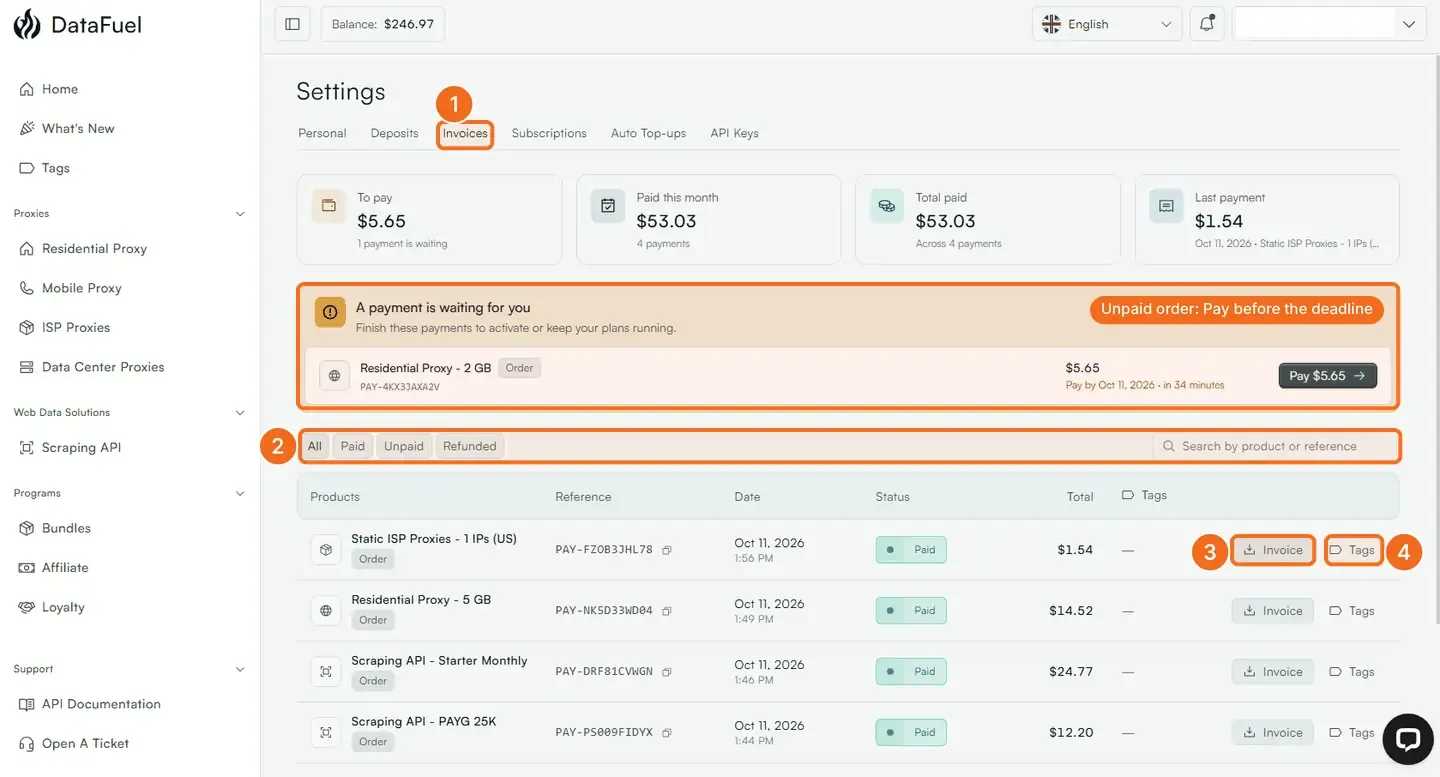
Every payment has a PDF under Settings → Invoices: find the row and click Invoice. The same PDF is attached to the payment confirmation email.
Written By Carmine Cella
Last updated 1 day ago
Every payment has a PDF under Settings → Invoices: find the row and click Invoice. The same PDF is attached to the payment confirmation email.
Before you start
If you need your VAT number or company name on the invoice, add them under Settings → Personal → Billing Details before you pay; an invoice is issued with the details on file at the moment of payment.
Steps
- Open Settings from the account menu at the top right, then Invoices. The cards at the top show what is waiting to be paid, what you paid this month, the total paid and the last payment.
- Filter with All, Paid, Unpaid or Refunded, or type a product name or the reference (
PAY-…) from your confirmation email into the search box. - On the row you need, click Invoice. The PDF downloads.
- Use Tags to label a payment with a project or a client; tags also appear on your plans.
What is on the invoice
Issuer Double C S.r.l., Via del Fosso della Magliana 34G, 00148 Rome, Italy, VAT IT17516471004; your name or company and VAT number as entered in Billing Details; the product and quantity (GB, IPs and period, or credits); the amount in USD; VAT where it applies.
If it did not work
- A payment is waiting for you. An order was placed without enough balance. Click Pay before the deadline shown on the row, or let it expire; nothing is charged for an expired order.
- The invoice shows the wrong company or no VAT number. Details are read at payment time. Update them under Settings → Personal → Billing Details, then write to support@datafuel.ai with the reference to have the invoice reissued.
- You need a statement for a period. Download the invoices one by one; a single statement is available on request for enterprise accounts.
Related
Was this helpful?
Still need help? Ask the team